BRsimDesigns has recently released their rendition of the Embraer E121A1 Xingu II for Microsoft Flight Simulator, an upgraded version of a twin-turboprop fixed-wing aircraft developed and manufactured in Brazil by Embraer in the mid-70s.
The E121 was the “first child” of Embraer’s 12X Project, which aimed to develop cutting-edge pressurized turboprop aircraft for civil and military use.
The Xingu was an upgraded EMB-110 Bandeirante, using the same Pratt & Whitney PT6A engines but with a sleeker fuselage and cutting-edge technology (for the 70s/80s).
BRsimDesigns modeled the upgraded version of the Xingu, named E121A1 Xingu II, introduced in September 1981. It was slightly more silent and a bit more powerful, thanks to the pair of PT6A-135 engines, cruising at 380 km/h, with a service ceiling of 28,000ft and 660 nautical miles of total range.
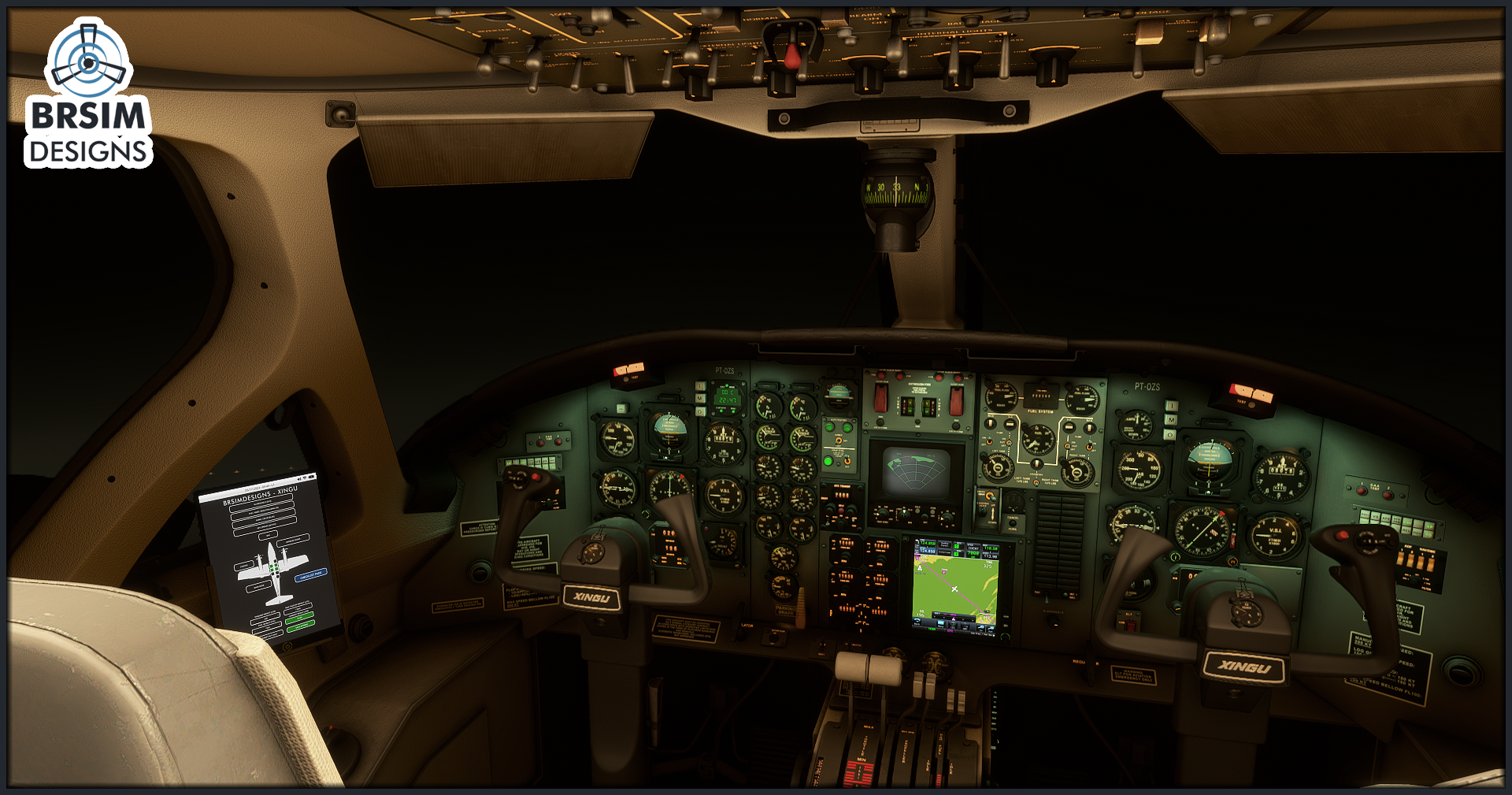
Their rendition for MSFS brings a detailed model, internally and externally, making use of 4K and 8K texturing, including eight liveries, a KAP140 autopilot, WT GNS530 integration (also compatible with the PNS GTN750, payware), custom NAV/COM/DME/ADF/Transponder panels, a limited weather radar, a custom coded pressurization and AC system, an EFB, and more. The complete feature list follows down below:
Visuals:
– 8 Liveries (Including two Brazilian Air Force and two French Air Force liveries)
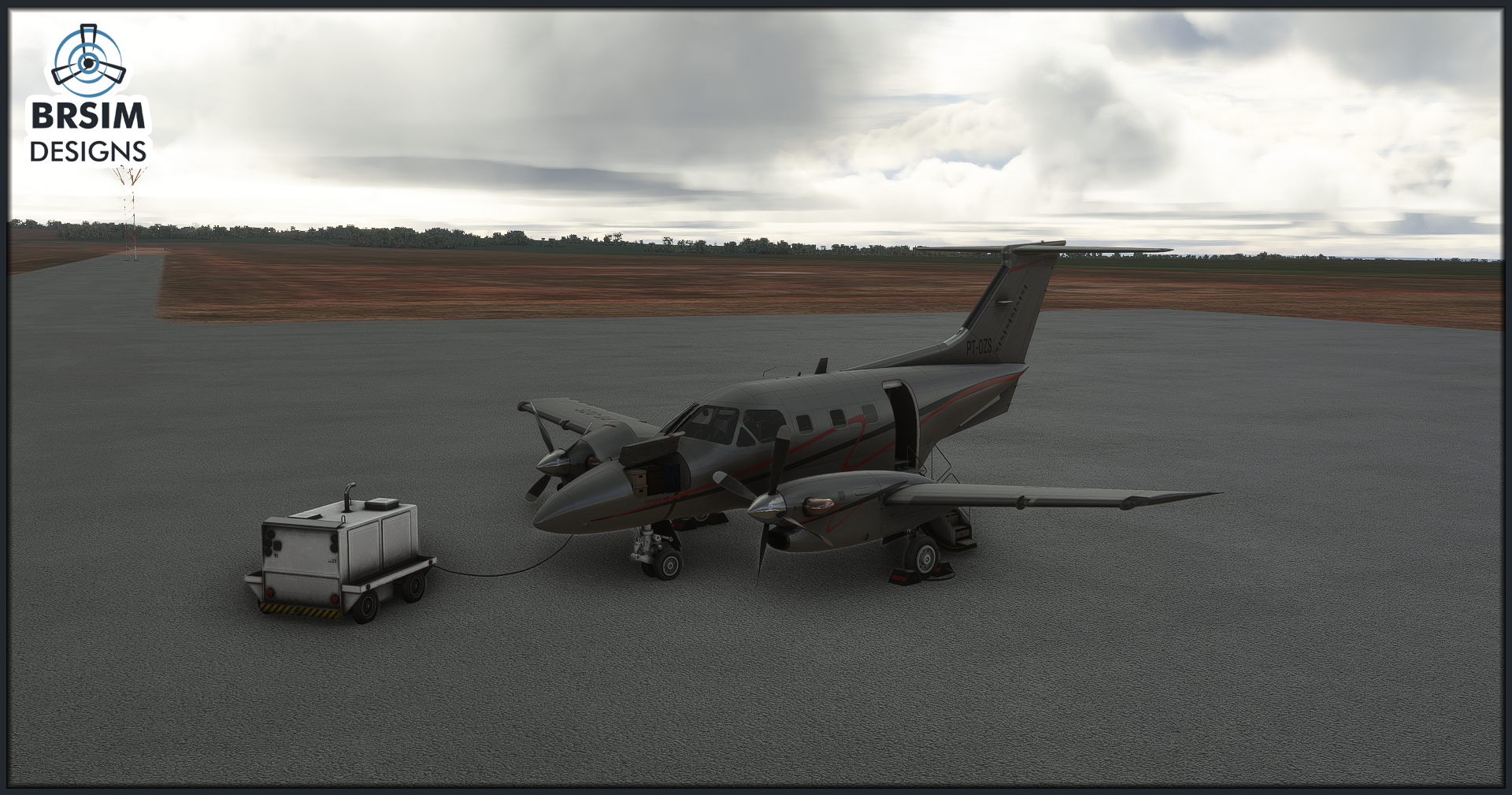
– Detailed external model
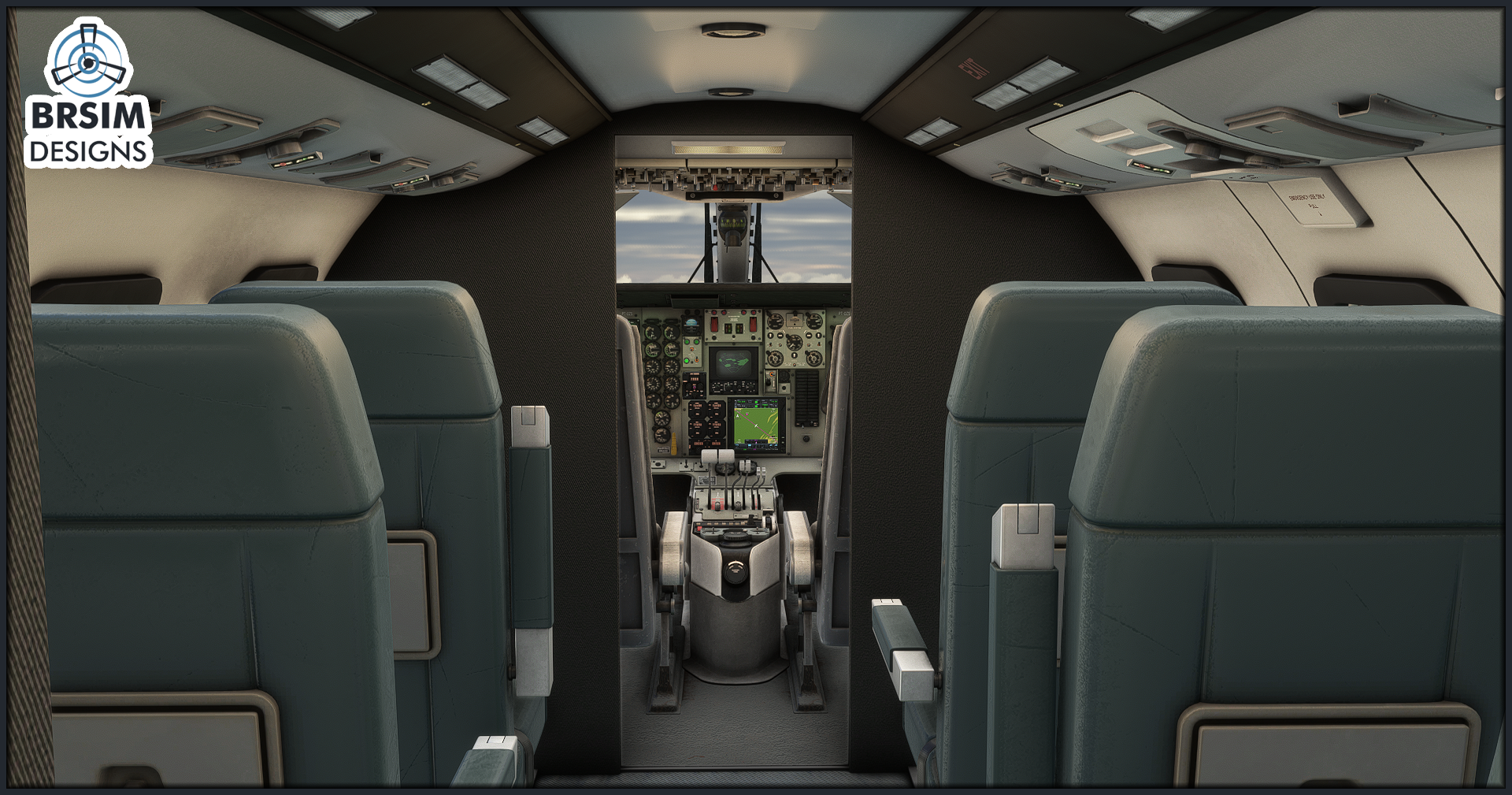
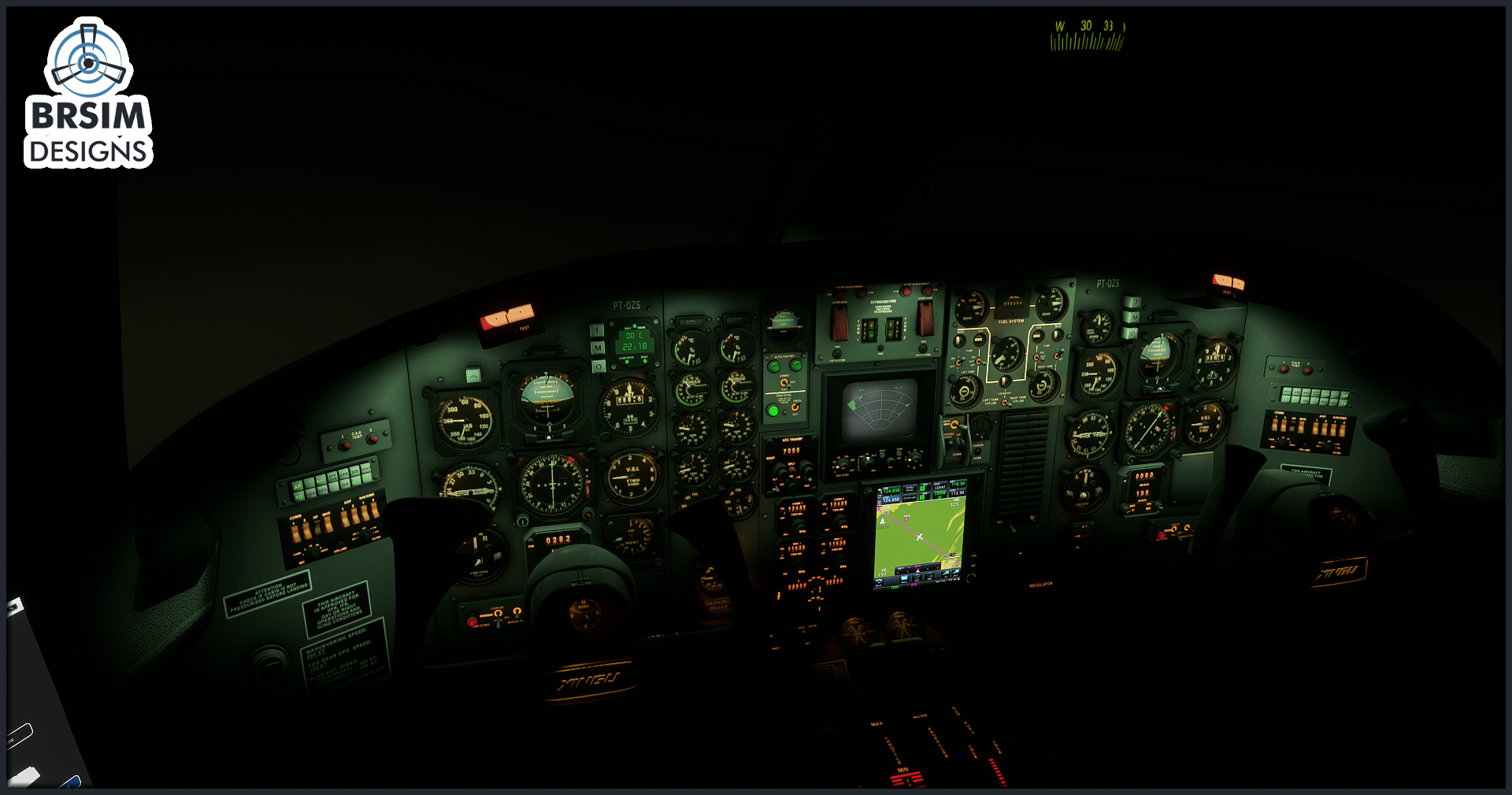
– Detailed cockpit model
– Detailed 3D instruments
– Detailed 4K and 8K textures
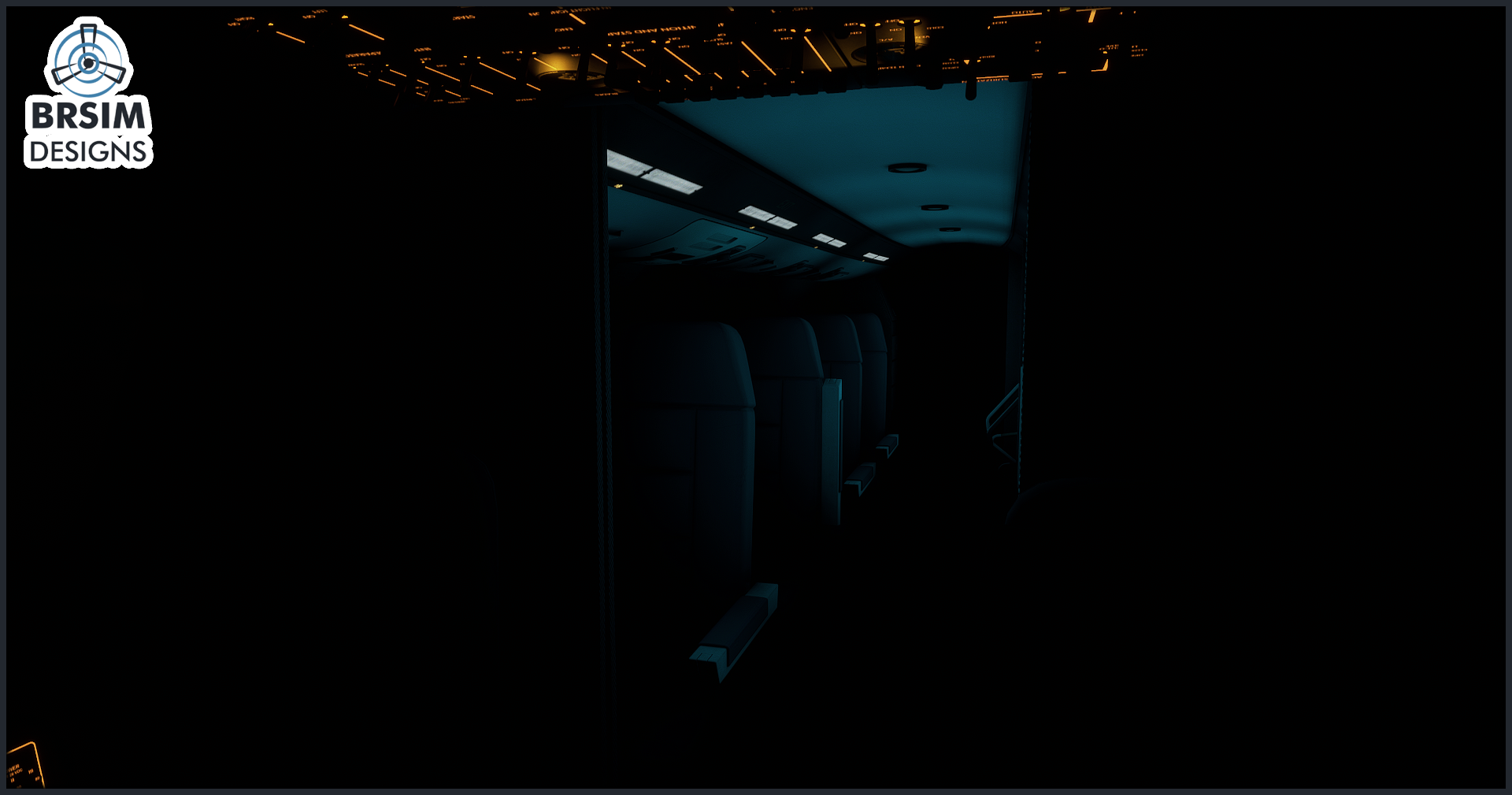
– Detailed passenger cabin
Autopilot/Navigation:
– KAP140 Autopilot
– GSN530 GPS (Working Title GSN530 necessary)
– PMS50 GTN750 (Externally Integrated)
– Custom NAV/COM/DME/ADF/Transponder panels
– Weather Radar (limited by API)
Warning System:
– Custom integrated warning system
Anti-Stall system:
– Stick Shaker
– C.A.A (AOA Control System)
AC/Pressurization:
– Custom coded AC system (With auto and manual control)
– Custom coded pressurization system (With ventilation and pressurization mode)
EFB:
– Controls: Chocks, GPU, doors, weight and fuel
Checklist:
– MSFS checklist menu
– EFB checklist page
– PDF checklist
MSFS Effects:
– MSFS icing effects
– MSFS particle effects
Customizations (Controlled by EFB):
– Airplane Registration (With the exception of Air Force liveries)
– 2 glareshield options (New and Old)
– 2 panel color options (Blue and Beige)
– Fuel Panel Indicator (Magnetic indicator or Lights)
– Shades for the cockpit side windows
– Baggage objects shown according to the loaded baggage weight
– WT GNS530 and PMS50 GTN750
– Save and autoload system for customizable options
Lighting:
– Custom cockpit flood light
– Custom passenger cabin light
– Custom glareshield light
– Custom and individual spot lights for every instrument
– Custom landing, taxi, nav, beacon and inspection light
Custom Sounds:
– Knobs
– Switches
– Warning
– Autopilot
– Stick Shaker
– Oxygen Test
– Fuel Pumps
– Engine Ignition
Notes:
– For the engine sounds to work, it is necessary to have the Default Asobo KingAir350 installed in your Microsoft Flight Simulator
– This add-on is not study level. However, normal operations are simulated.
– It is recommended to start the airplane in Cold And Dark state.
– It is recommended to load fuel and weight using the EFB.
– Not tested for Virtual Reality (VR)
It’s available on SimMarket for roughly $19.49, requiring at least 708.95 MB of free hard disk space to install.
Stay tuned to Threshold for more flight simulation news!